
How to Back Up and Restore GB WhatsApp Chats
If you use GB WhatsApp, backing up your chats before updating, reinstalling, or changing phones is the only reliable way to avoid losing your message history. This guide explains how local backups work, how to check your backup files, and what to expect when restoring or moving to a new device.
Why Backups Matter Before Any Major Change
GB WhatsApp stores your chats locally on your phone. Uninstalling the app, clearing its data, or losing the device can erase years of conversations in seconds. A backup protects you in three common situations:
- Updating the app: A failed update can corrupt local data.
- Reinstalling: Removing the app removes its data unless a backup exists.
- Switching phones: Nothing transfers automatically without a backup file.
Chat Backups vs. Media Files
Two different things need protection, and people often confuse them:
- Chat backup: The message database containing your conversations.
- Media files: Photos, videos, voice notes, and documents stored in separate folders.
Restoring a chat database without its media folders gives you messages without their attachments. Protect both by copying the app’s entire data folder, not just one file.
How to Check Your Local Backup Files
Before trusting a backup, verify it physically exists:
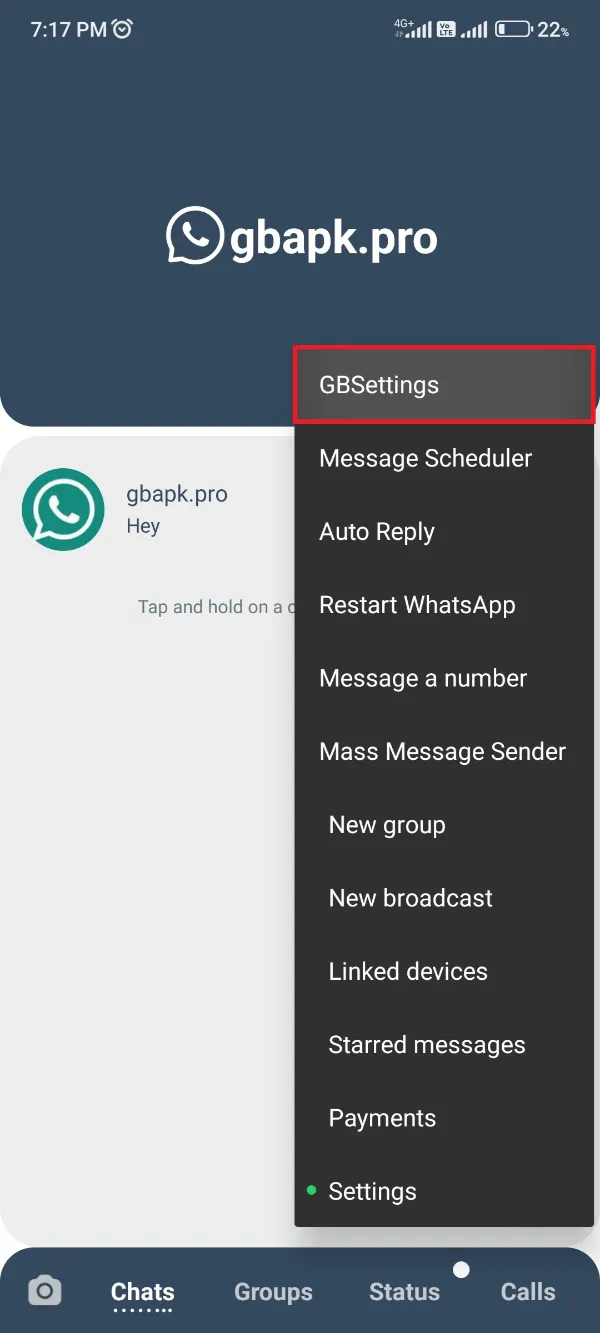
- Open GB WhatsApp’s settings and look for chat or backup options, and run a backup if your version offers one. Menu names vary between builds.
- Open your phone’s file manager and browse to the folder GB WhatsApp uses in internal storage. The exact path varies by app version and Android version.
- Locate the backup or database files and check their dates and sizes. A recent date and a non-zero size are good signs.
- Copy the whole folder to a computer, SD card, or trusted cloud storage.
Preparing to Restore a Backup
Restores fail most often because of preparation mistakes. Before restoring, confirm:
- Backup date: The backup is recent enough to be useful.
- File integrity: Files copied completely and are not corrupted or zero bytes.
- Storage space: The phone has enough free room to unpack the backup.
- Same phone number: Backups are tied to the number that created them.
- Version compatibility: Backups made by one build may not restore cleanly on a very different one. If you need an earlier release for compatibility reasons, check the GB WhatsApp old versions page and keep backups matched to the version that created them.
Restoring Chats on the Same or a New Phone
The exact flow depends on your app version, but a typical restore looks like this:
- Place the backup folder in the correct location in internal storage before opening the app.
- Install the same or a compatible version of GB WhatsApp, and do not open it until the files are in place.
- Open the app, verify your phone number, and accept the restore prompt if it appears.
- Let the process finish, then check both messages and media files.
When moving to a new Android phone, copy the entire folder from the old device to the same relative location on the new one before the first launch. Only wipe the old phone after confirming everything restored correctly.
Backup Limitations You Should Know
Be realistic about what modified-app backups can and cannot do:
- Many modified builds do not support Google Drive backups the way the official app does, so local files are often your only copy.
- A GB WhatsApp backup is not guaranteed to restore into the official WhatsApp app, and vice versa.
- Never delete old backups or app data until you have confirmed a new backup works.
If you are planning an update, read our guide on fixing GB WhatsApp update errors after securing your backup, and only download builds from sources you trust such as the GB WhatsApp download page.
Frequently Asked Questions
Does GB WhatsApp back up to Google Drive?
Many modified builds lack official Google Drive backup support. Check your own version’s settings and keep local copies regardless.
Can I restore a GB WhatsApp backup into official WhatsApp?
There is no guaranteed method. Backup formats can differ, so plan to keep your history within the same app environment.
Where are GB WhatsApp backups stored?
Usually in the app’s folder in internal storage, but the exact path varies by app and Android version. Confirm the location with a file manager on your own device.
Will uninstalling GB WhatsApp delete my chats?
Yes, in most cases uninstalling removes local data. Copy your backup folder somewhere safe first.